Upgrading Windows Server 2022 to 2025 helps improve security, performance, and system stability. In this guide, you can learn how to prepare your server, including backing up data, and how to upgrade to Server 2025 via two methods: an in-place upgrade and a clean installation.
Quick Answer: Can You Upgrade Windows Server 2022 to 2025
If you’re running Windows Server 2022, you can upgrade to Windows Server 2025 to benefit from enhanced security, improved performance, and the latest features.
Before upgrading:
- Check the hardware compatibility
- Back up your data
- Check storage space
Then, perform the upgrade process by performing an in-place upgrade or making a clean installation.
Why Upgrade Windows Server 2022 to 2025
Windows Server 2025 delivers significant improvements in security, performance, and stability, making infrastructure management simpler and more efficient.
Key new features include:
- Adds the Compress to option with support for ZIP, 7z, and TAR formats.
- Allows pinning most-used apps through the Start menu.
- Includes Windows Terminal and the modern Task Manager app with a Windows 11-style interface.
- Supports Hotpatch, enabling security updates without restarting the server.
- Enables Credential Guard by default on compatible devices.
- Enhances Active Directory Domain Services (AD DS) and Active Directory Lightweight Domain Services (AD LDS) with new features.
- Improves Azure Arc integration and hybrid cloud capabilities.
To take full advantage of these new features and improvements, upgrade from Windows Server 2022 to Windows Server 2025.
Differences – Windows Server 2022 vs Windows Server 2025
This post introduces details about Windows Server 2022 vs Windows Server 2025. After reading this post, you can know which one to choose.
Read More
Prepare Your Server Before Upgrade
Before proceeding, it is important to prepare your server. Complete the following tasks for a smooth transition to the new version.
#1. Check the Hardware Compatibility
First, verify that your server meets the Windows Server 2025 system requirements. Otherwise, the upgrade may fail or won’t be supported.
The minimum system requirements are listed below:
| Feature | Requirement |
| CPU | 1. 1.4-GHz 64-bit processor 2. Compatible with x64 instruction set 3. Support for NX and DEP 4. Support for CMPXCHG16b, LAHF/SAHF, and PrefetchW instructions 5. Support for Second Level Address Translation (EPT or NPT) 6. Support for the SSE4.2 (Streaming SIMD Extensions 4.2) instruction set 7. Support for the POPCNT instruction |
| RAM | 1. 2 GB for Server Core 2. 2 GB for Server with Desktop Experience, 4 GB recommended 3. ECC RAM or equivalent for physical hosts |
| Storage | 32 GB of space |
| Network | 1. 1 Gbps Ethernet adapter 2. Compliant with the PCI Express architecture specification |
To check your server’s specifications, use Task Manager:
Step 1: Right-click the taskbar to open Task Manager.
Step 2: Under Performance, view the information about your CPU and RAM.
Tips:
To verify whether your CPU and RAM meet the requirements, search for your hardware model on the manufacturer’s website and review its specifications.
#2. Back Up Your Server Data
A complete backup is a critical step before upgrading Windows Server 2022 to 2025.
Although an in-place upgrade keeps your data, unexpected issues can still lead to data loss or corruption. Additionally, if you perform a clean installation of Server 2025, personal files will be erased.
With a full backup, you can easily recover deleted files if something goes wrong.
MiniTool ShadowMaker is a reliable and secure backup solution, helping create a disk, partition, system, folder, and file backup for the Windows device. It provides flexible options to make automatic, differential, and incremental backups, saving time and storage space.
MiniTool ShadowMaker TrialClick to Download100%Clean & Safe
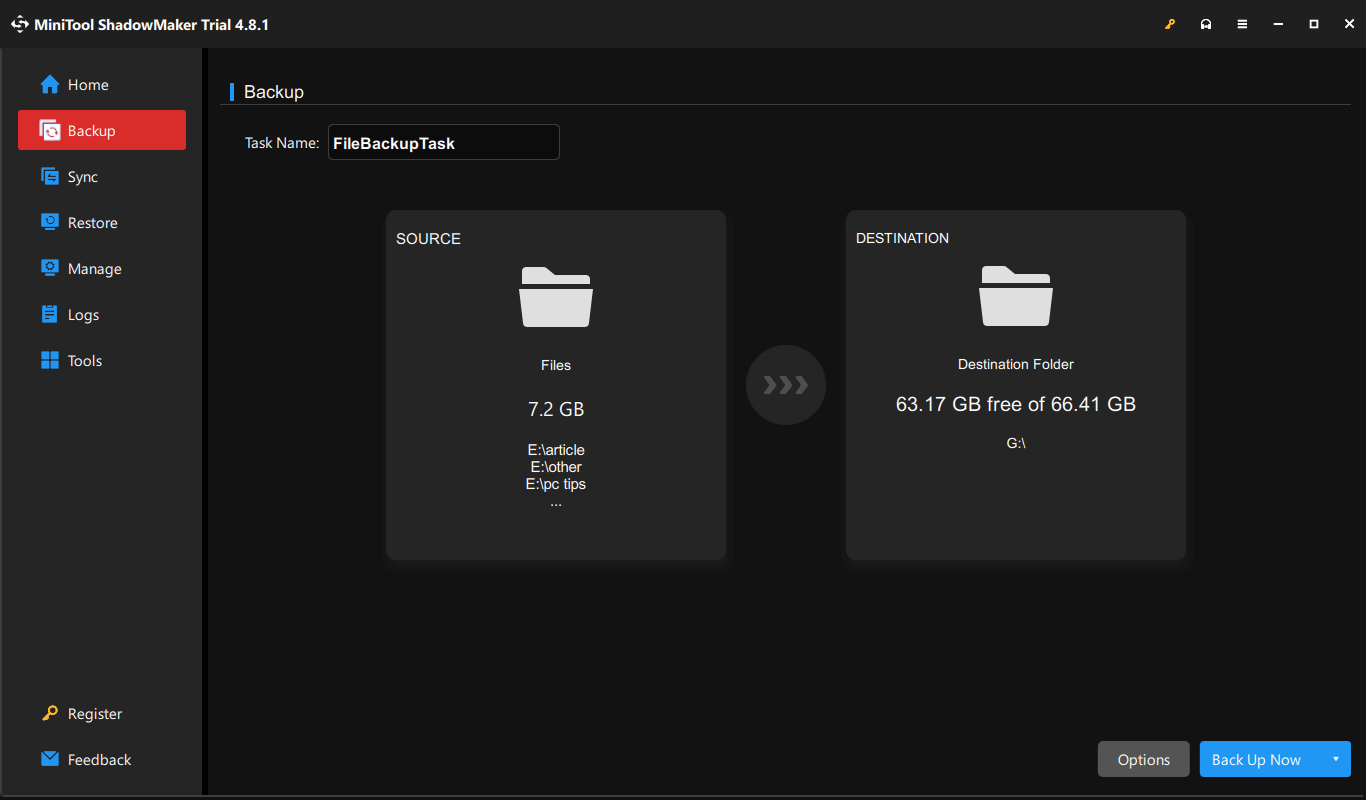
Step 1: Insert an external hard drive or USB drive into the computer.
Step 2: Launch MiniTool ShadowMaker.
Step 3: Navigate to the Backup tab, click SOURCE > Folders and Files, and select your important files to back up.
Step 4: Go to DESTINATION and choose the connected drive to save the image file.
Step 5: Click Back Up Now to begin the backup task.
Tips:
In addition to backing up your data, it’s recommended to create a system backup. Simply keep the system drives selected under SOURCE, choose a destination, and start the backup.
How to Create Windows Server Backup Weekly – 3 Ways
How to create Windows Server Backup weekly? This post provides 3 ways for you to do that on Windows Server 2022/2019/2016/2012/2012 R2.
Read More
#3. Check Storage Space
Ensure the computer has at least 32GB of space to install Windows Server 2025. For optimal performance, more available storage is recommended.
Open File Explorer and check the available space on the C drive. If it’s insufficient, free up disk space or extend the C: drive by allocating space from another partition using MiniTool Partition Wizard.
#4. Additional Preparation Checklist
In addition to the preparations above, complete these checks before starting the upgrade.
- Licensing: Ensure you have a valid key to activate Windows Server 2025. A Server 2022 key cannot be used to activate the new version, as Microsoft Server product keys are version-specific.
- Cumulative update installation: To upgrade to Server 2025 from 2022, you need to first install the March 2026 cumulative update (KB5078766) or later.
- Domain controllers: Avoid performing an in-place upgrade on an Active Directory domain controller. A clean installation is the recommended approach.
How to Upgrade Windows Server 2022 to 2025
There are two methods for a Windows Server 2022 to 2025 upgrade:
- In-place upgrade (keep files)
- Clean installation (fresh start)
Choose the right approach based on your needs.
Method 1: Perform an In-Place Upgrade
Best for: Users who want to keep existing files, apps, server roles, and settings.
An in-place upgrade is the easiest way to upgrade Windows Server 2022 to Server 2025. It retains your files, programs, and settings, so you can continue using your server without reconfiguring everything.
Step 1: Download Windows Server 2025 ISO
1. Access the Windows Server 2025 website.
2. Follow the on-screen instructions to download the ISO file.
Tips:
During my test, the ISO file is about 7.6GB.
Step 2: Mount ISO
1. Locate the downloaded ISO file.
2. Right-click it and choose Mount.
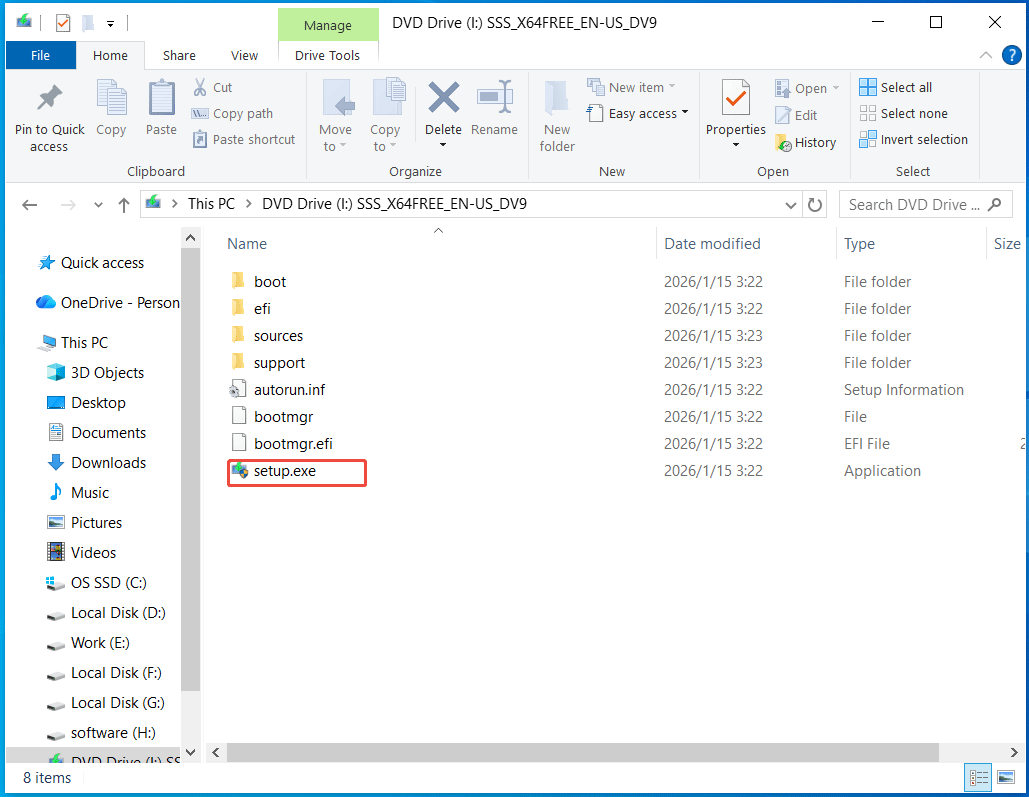
3. Run the setup.exe file in the virtual drive to open Windows Server Setup.
Step 3: Start Windows Server setup.
1. Determine whether to change how Setup downloads updates.
2. Check I want to help make the installation better.
3. Select a proper edition for Windows Server 2025. The evaluation ISO used for this demonstration includes the Standard and Datacenter editions.
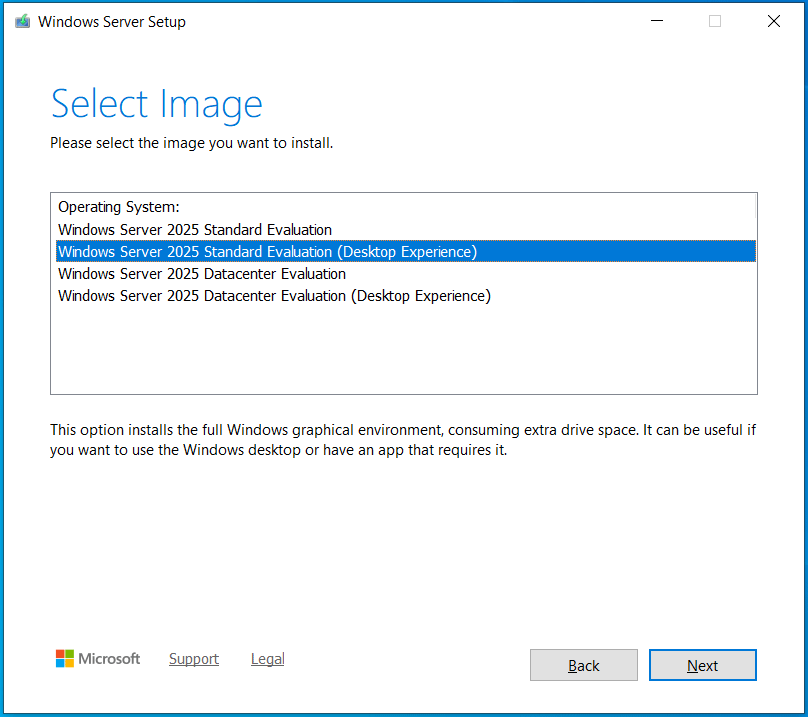
Tips:
Not all edition upgrades are supported. The following table outlines the supported upgrade paths.
| Source Edition (2022) | Target Edition (2025) | Supported or not |
| Standard | Standard | Yes (Same-edition upgrade) |
| Datacenter | Datacenter | Yes (Same-edition upgrade) |
| Standard | Datacenter | Yes (Edition upgrade allowed) |
| Datacenter | Standard | No (A downgrade is blocked) |
4. Accept applicable notices and license terms after checking your PC.
5. Choose what to keep, for example, Keep files, settings, and apps. In addition, you can choose Nothing if you want to remove everything.
6. Click the Install button to begin the upgrade process.
![How to Upgrade Windows Server 2012 R2 to 2019? [Step by Step]](https://images.minitool.com/minitool.com/images/uploads/2022/07/upgrade-windows-server-2012-r2-to-2019-thumbnail.png)
How to Upgrade Windows Server 2012 R2 to 2019? [Step by Step]
This post will help you if you are planning to upgrade Windows Server 2012 R2 to 2019. Besides, it teaches you how to back up the system before upgrading.
Read More
Method 2: Perform a Clean Installation of Windows Server 2025
Best for: Users who want a fresh Windows Server 2025 or need to resolve existing compatibility issues and performance problems.
A clean installation deletes the existing system installation and configuration files, giving you a completely fresh copy of Windows.
Tips:
Be sure to make a backup of your important data beforehand using MiniTool ShadowMaker. The installation process will erase your personal files, including documents, downloads, pictures, videos, and music files.
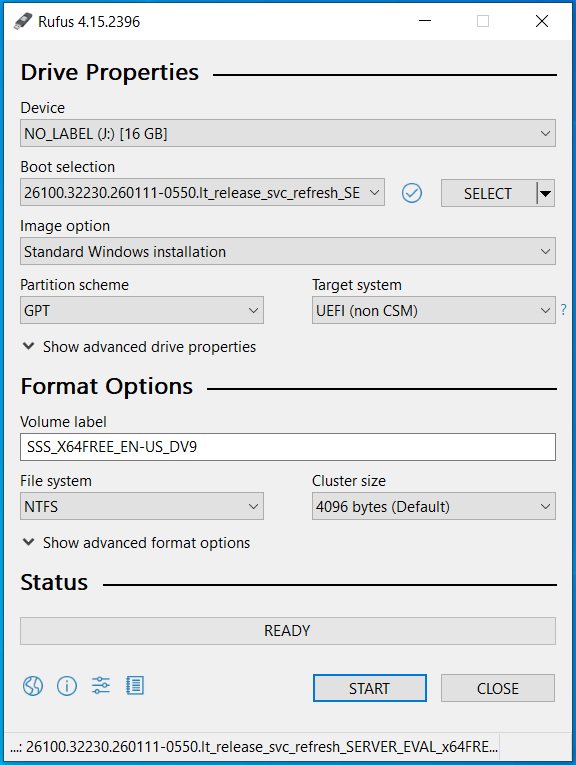
Step 1: Create bootable USB of Windows Server 2025.
1. Download Server 2025 ISO from Microsoft, as mentioned in method 1.
2. Download and run Rufus in Windows Server 2022.
3. Insert a USB flash drive into the machine.
4. Follow the instructions to burn ISO to USB to get a bootable drive.
Step 2: Boot Windows Server from USB.
1. Restart the operating system.
2. Press Del, F2, or a key specified by the manufacturer to access BIOS/UEFI settings.
3. Choose the USB drive as the boot device.
4. Save the change to boot the system.
Step 3: Install Windows Server 2025.
1. Select a language and time format.
2. Choose a keyboard format.
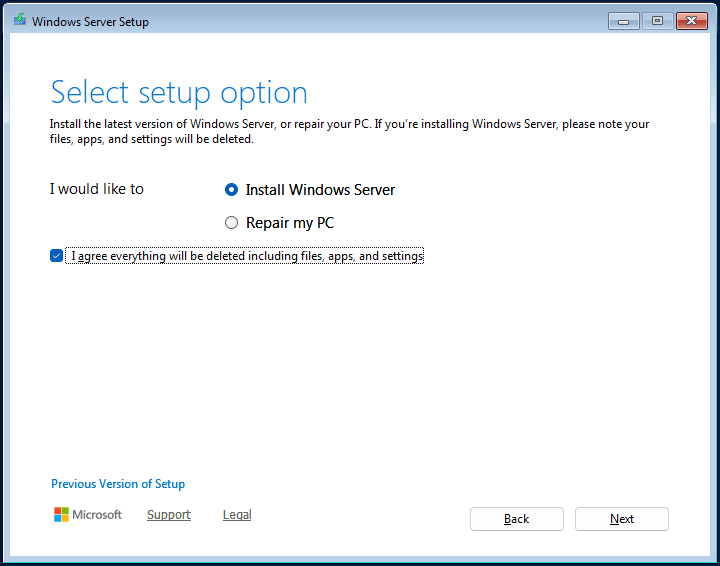
3. Check Install Windows Server and I agree everything will be deleted including files, apps, and settings.
4. Select a Windows edition to install.
5. Accept the license terms.
6. Delete the current system drives and choose the unallocated space to install Windows Server 2025.
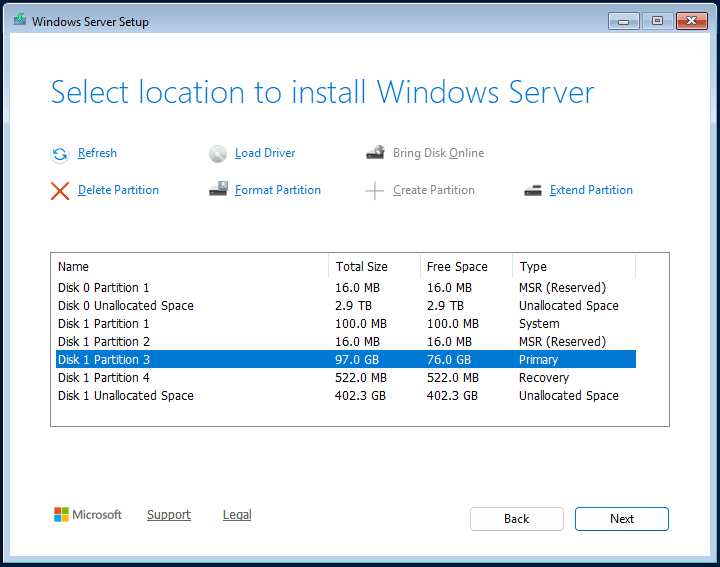
Then, the setup tool starts installing the new system.
When the installation finishes, follow the on-screen instructions to complete the initial setup and sign in to Windows Server 2025.
Windows Server 2022 to 2025 In-Place Upgrade vs Clean Installation
Both an in-place upgrade and a clean installation can be used to upgrade Windows Server 2022 to 2025. The following table compares these two methods so you can choose the one that best fits your needs.
| Feature | In-place upgrade | Clean installation |
| Keep files, apps, and settings | Yes | No |
| Suitable for | Existing production servers | New deployments |
| Downtime | Shorter | Longer |
| Configuration work | Very easy | Complex |
| Risk of compatibility issues | High | Low |
In conclusion, an in-place upgrade is a viable choice if you need to preserve the existing data, programs, and settings. When your Server 2022 encounters serious system issues or you need a fresh system, make a clean installation of Server 2025.
Additional Note: Windows Server 2025 Upgrade Path
If you’re running an older version of Windows Server, you may be able to upgrade to Windows Server 2025 through an in-place upgrade.
The following screenshot shows the supported upgrade paths provided by Microsoft.
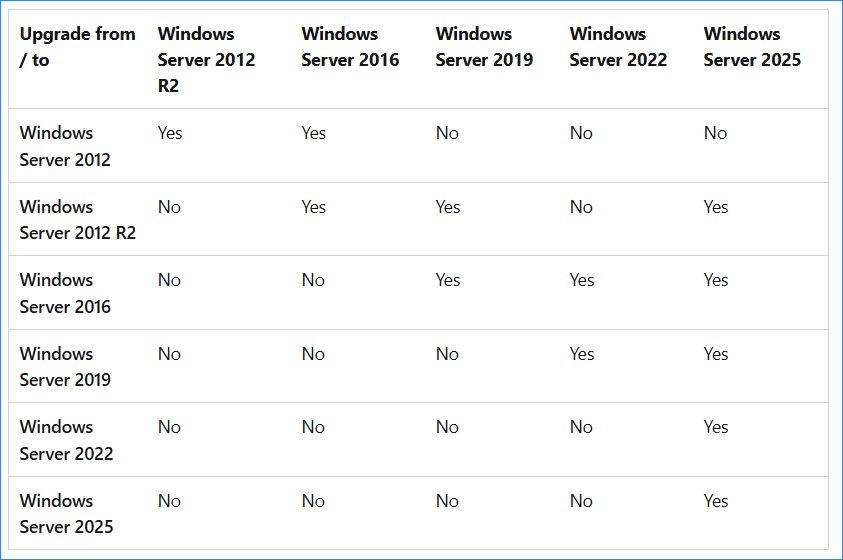
This indicates you can directly upgrade from Windows Server 2012 R2, 2016, 2019, or 2022 to Windows Server 2025. However, Windows Server 2012 doesn’t support an in-place upgrade to Server 2025.
How to Upgrade Windows Server 2016 to 2022? 2 Options to Try!
This step-by-step guide explains how to upgrade Windows Server 2016 to 2022 using two methods: in-place upgrade and clean installation.
Read More
Things to Do After Upgrading to Windows Server 2025
It is important to take some steps after installing the new version to ensure your system is fully functional and secure.
- Ensure all installed server roles, features, and services are functioning correctly.
- Reinstall necessary apps after a clean installation. Or test critical apps if you run an in-place upgrade.
- Activate Windows Server 2025 using a valid product key.
- Check for and install the latest cumulative updates, security patches, or optional updates to keep your server secure and up to date.
- Use MiniTool ShadowMaker to create automatic backups to safeguard your server against various online threats, hardware failure, and system crashes.
- Restore your backed-up data if you clean install Windows Server 2025. For an in-place upgrade, verify that the existing data is intact and accessible.
- If needed, delete the Windows.old folder to free up storage space.
Upgrade Windows Server 2022 to 2025 FAQ
Should I disconnect the server from the network during the upgrade?
No, you shouldn’t disconnect the server from the network in the upgrade process. Keeping the network connected allows Windows Server Setup to download necessary updates.
Does upgrading Windows Server 2022 to 2025 affect installed drivers?
Yes. Some installed drivers may become incompatible after the upgrade. If this happens, update them to ensure all hardware works properly.
Will Active Directory and server roles be preserved after the upgrade?
Can I roll back to Windows Server 2022 after upgrading?
No. A direct rollback or in-place downgrade from Windows Server 2025 to 2022 is not supported. The only way is to perform a clean installation.
Is Windows Server 2025 a free upgrade from Windows Server 2022?
No. The upgrade requires a Server 2025 license to activate it, although Microsoft supports an in-place upgrade.
Bottom Line
Upgrading Windows Server 2022 to Server 2025 can keep your system more secure and reliable. If you plan to install this new version, check the hardware compatibility and back up important data. Then, follow the instructions to perform an in-place upgrade or clean install of Server 2025.
If you encounter any problems while using MiniTool software, please feel free to contact our support team at [email protected].